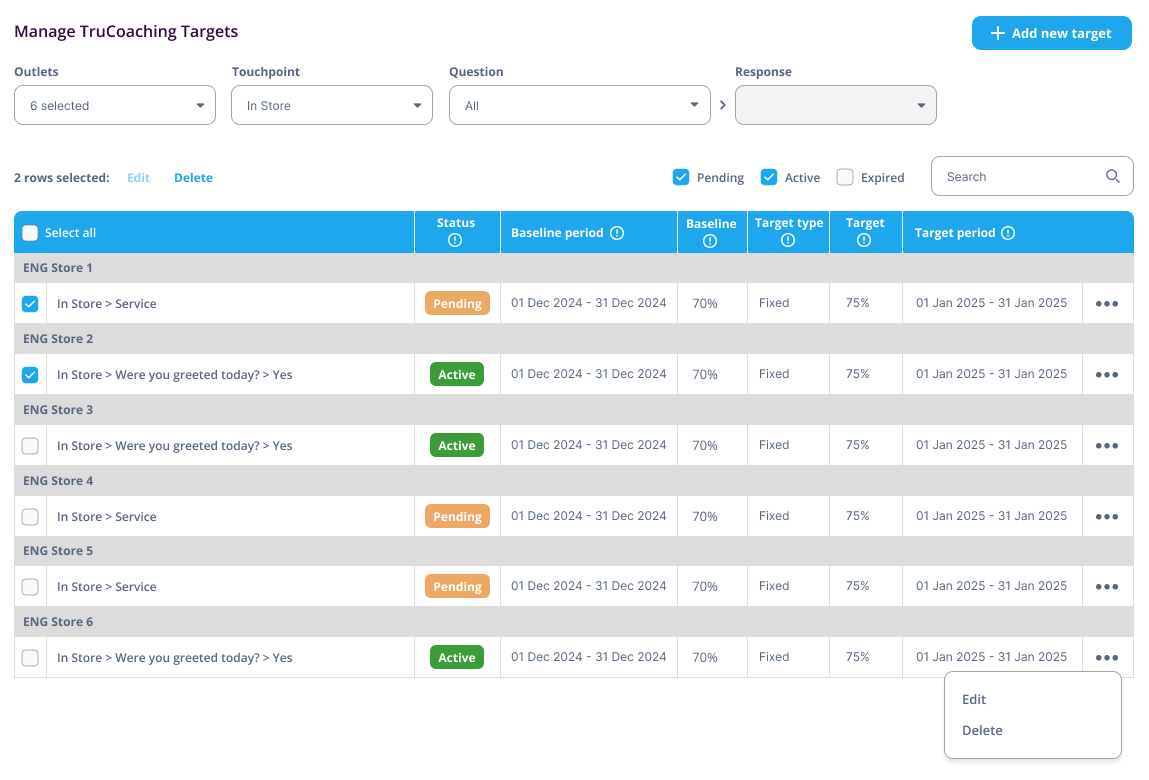
Users with the appropriate role are able to create, view and edit targets for a given question and assign them to individual outlets.
To set up a new target:
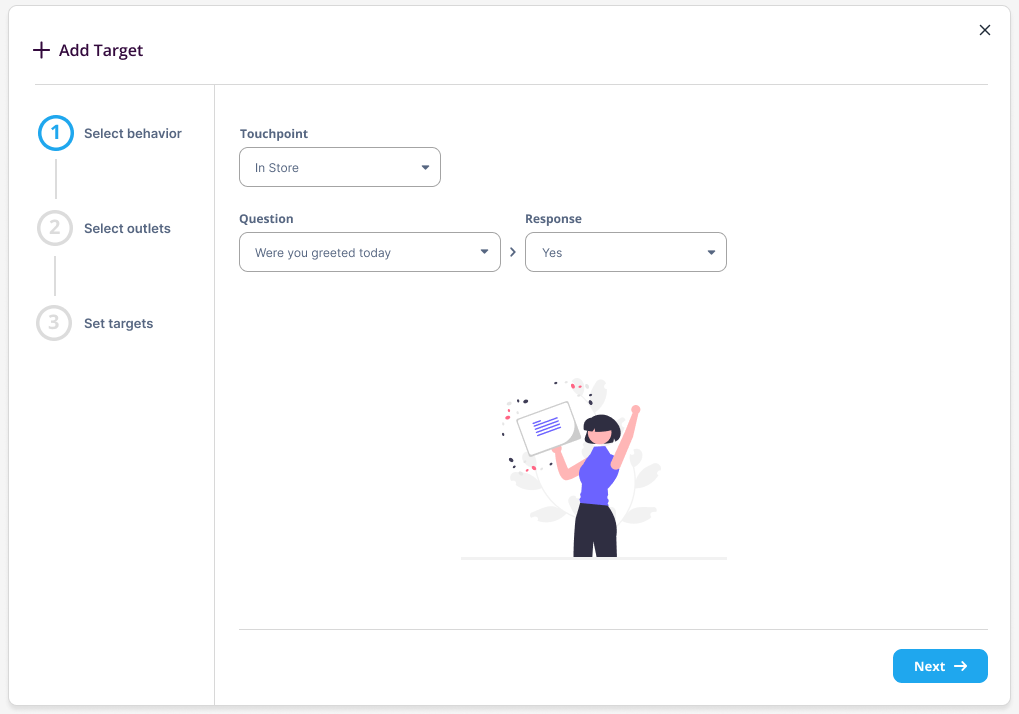
Visit Account Admin > Manage Targets and hit “New Target" to launch the setup wizard which will assist you through the steps below...
First, choose the touchpoint, question and response that you'd like to create a target for. Once you have made your selection, hit "Next". Note: If you select a scale (0-9) question, the "response" in this case will be in the form of the response segment (i.e. Fans, Indifferent, Disappointed).
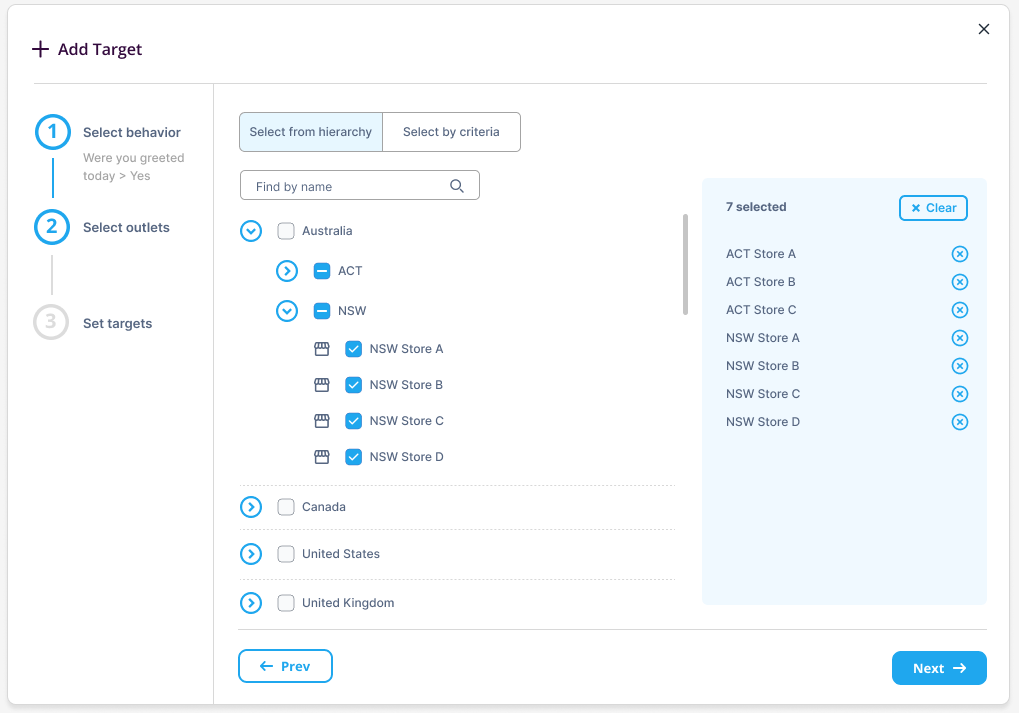
Second, choose the outlet(s) that you wish to assign the target to. Via the toggle at the top of the interface you can choose to "select from hierarchy" (where you can select your outlets manually) or "select by criteria" where, for example, you might choose to auto-select all outlets where the score falls within the bottom "x" percent. Once you've made your outlet selection, hit "Next".
Third, specify the target details for each outlet. The required fields here are: Baseline period, Target type and Target period (each of which are explained in the table below).
You may choose to add this data individually (outlet by outlet) or in bulk via the "Add to all" form at the top of the interface). Note that after adding in bulk, it is still possible to tweak individual records before saving. You may also choose to remove an outlet from this list by selecting the "X" icon at the end of the corresponding row.
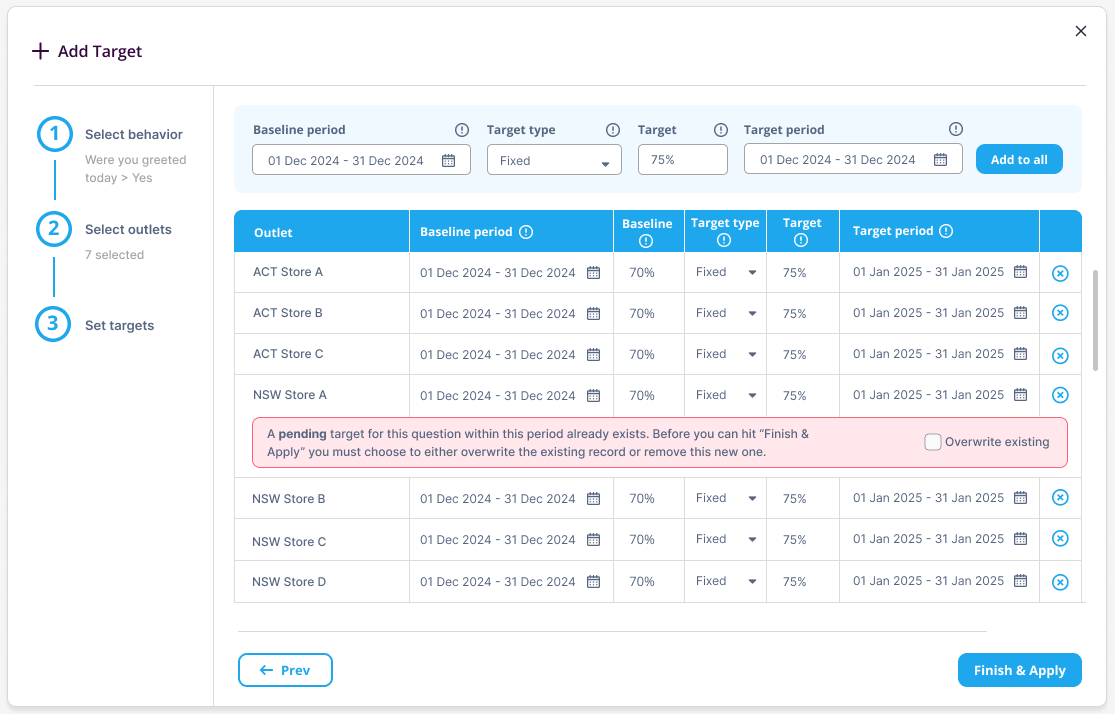
Required fields when specifying target details:
| Field | Description | Info |
| Baseline period | This is the time-period (in the past) over which the starting score (or baseline score) for an outlet is to be calculated. | This will then auto-populate the baseline score for the selected outlet(s). |
| Target | This is where you populate the target itself. | Only "Fixed" targets are supported at this time so, here you simply need to enter the score that you'd like the outlet to achieve. |
| Target period | This is the future time-period during which progress will be monitored, and Store Managers will receive weekly progress updates. | Before the target period commences, the target record will be considered "Pending". When the period commences, the target record will become "Active" and once the period ends, the target record will become "Expired" and target achievement can be judged. |
Limit of one target record per outlet
Please be aware that, at this time, only one target record may exist for any given outlet. This supports the outlet team in focussing on one key behaviour at a time. If you attempt to add a new target record to an outlet that has an existing target record, you will be prompted to either overwrite the existing one, remove the existing one or cancel the creation of the new record.
Finally, once you are happy with your target data, hit "Finish & Apply".
Each of the selected outlets will now display a "Pending" target record, which will update to "Active" once the target period commences.