
View existing target records
Once a target record has been created for a given store, this can be found in the table view within: Account Admin > Manage Targets.
Here you can filter the list of existing targets by:
- Outlet, Touchpoint and/or Question Response
- Status (Pending / Active / Expired)
You may also perform a free text search and filter the list this way.
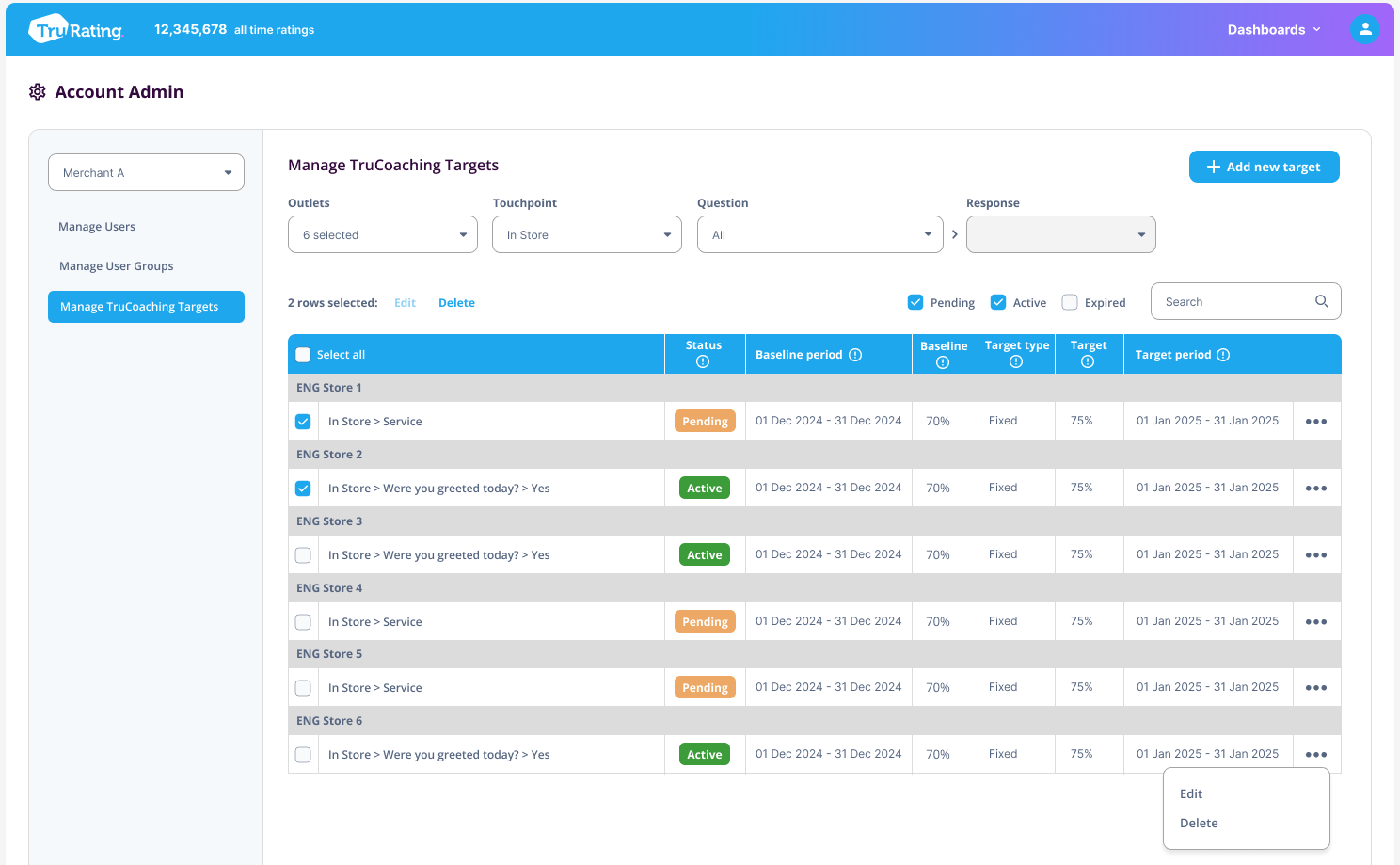
From this view, you may then choose to perform one of the following actions:
Edit a single target record
Select the more icon on the right of the appropriate table row and hit "Edit".
The appropriate fields will now become editable, as follows, depending on the status of the record.
In this case of a Pending record, all fields will be editable. In the case of an Active record, the target period end date will be editable. In the case of an Expired record, the target period end date may be extended if the record expired within the last 28 days.
Edit multiple records
Select the necessary target records via the checkboxes on the left of each table row.
The number of selected rows will be presented above the table view, along with an "Edit" button.
Hit "Edit" to launch the wizard where you can make and save your edits.
In this case of a Pending record, all fields will be editable. In the case of an Active record, the target period end date will be editable. In the case of an Expired record, the target period end date may be extended if the record expired within the last 28 days.
Note: Updating multiple records is only possible where each selected record applies to the same question response. If records across different question responses are selected, the ability to edit is disabled.
Delete a single record
Select the more icon on the target record and hit "Delete".
Note that Expired records cannot be deleted.
Delete multiple records
Select the necessary target records via the checkboxes on the left of each table row.
The number of selected rows will be presented above the table view, along with a "Delete" button.
Hit "Delete".
Note that Expired records cannot be deleted.